
Help / Instagram
Keep Instagram in one window (DM helper for Chrome)
A free add-on for Chrome that puts Crustomer and Instagram side by side, so sending DMs to a list is paste, send, next. About 2 minutes to set up.
When you send DMs from a list in Crustomer, each person normally opens in a new tab. With the DM helper, your screen splits in two: Crustomer on the left, Instagram on the right. Every time you open the next person, that same Instagram window moves to them. No piles of tabs.
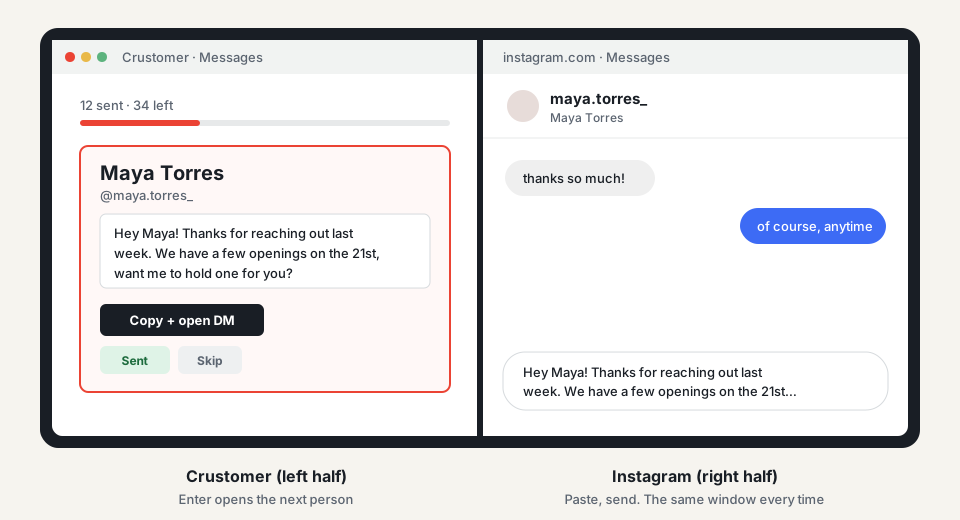
The helper never types, clicks, sends or reads anything on Instagram. You paste and send every message yourself, just like now. It only moves the Instagram window to the next person.
Before you start
- You need Google Chrome on a Mac or PC (Edge, Brave and Arc work too).
- Your phone doesn't need it: there, each DM already opens in the Instagram app.
Install it (about 2 minutes)
Download the helper
Click the button. A file called crustomer-dm-helper.zip lands in your Downloads folder.
Download the DM helperUnzip it and put the folder in Documents
Double-click the file (on Windows, right-click it and choose Extract All). You get a folder called crustomer-dm-helper. Move that folder into your Documents folder. Chrome uses it from there, so don't delete it later.
Open Chrome's Extensions page
Copy this address, paste it into Chrome's address bar and press Enter. (Or open Chrome's ⋮ menu, then Extensions, then Manage Extensions.)
chrome://extensionsTurn on Developer mode
It's the switch in the top right corner. It just lets Chrome add a helper from a folder; it doesn't change anything else.

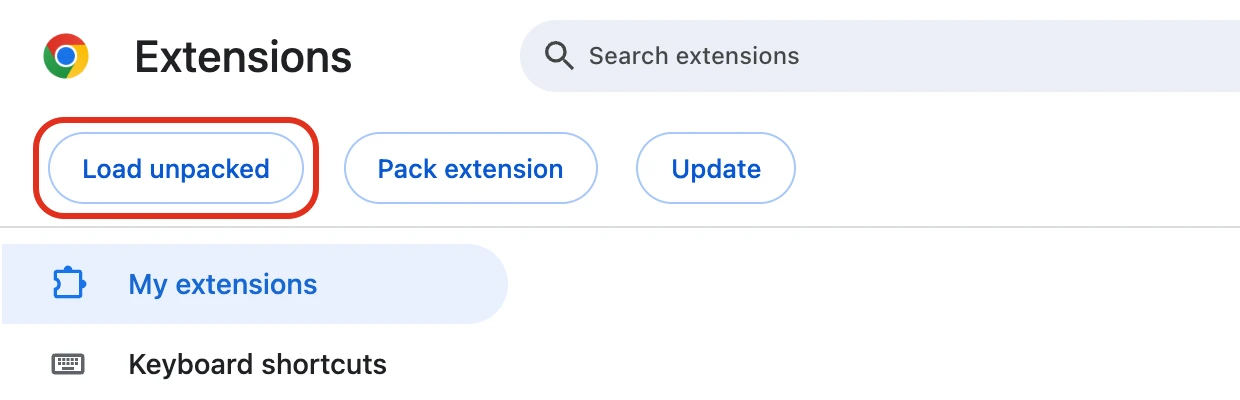
Click Load unpacked and pick the folder
A new row of buttons appears. Click Load unpacked, open Documents, click the crustomer-dm-helper folder once, then click Select (Select Folder on Windows).
Done. Reload Crustomer
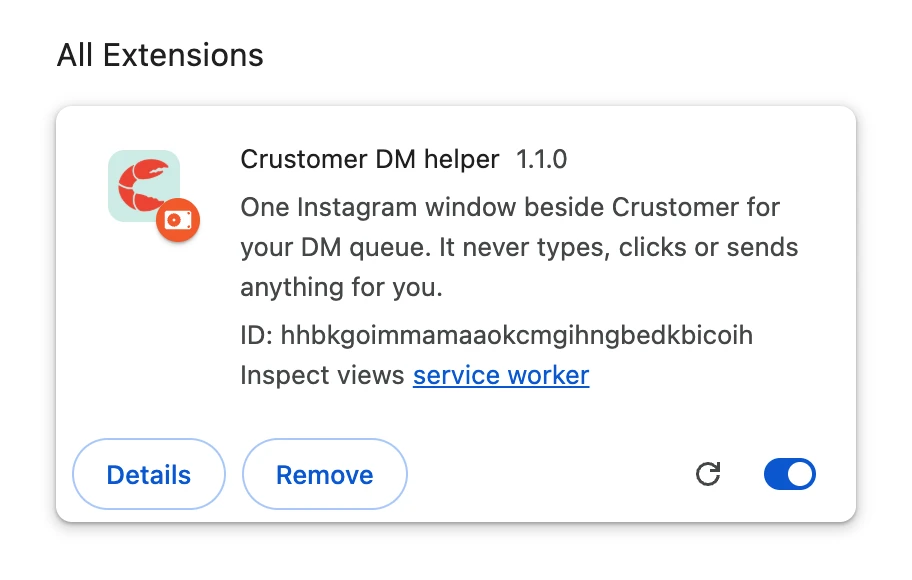
Crustomer DM helper shows up with its switch on. Go back to your Crustomer tab and reload the page.
Send your DMs
- In Crustomer, open Messages, then your Instagram list.
- Press Enter (or click Copy + open DM). The message is copied, Crustomer moves to the left half of your screen, and Instagram opens on the right with their DM.
- In Instagram, press ⌘V then Enter (Ctrl+V then Enter on Windows).
- Press ⌥S (Option+S; Alt+S on Windows). It's marked sent and you're back in Crustomer with the next person ready. Press Enter again.
If Instagram says the account doesn't exist, go back to Crustomer and press N (Account not found). They move to Couldn't find, where Crustomer looks for their new username and lets you pick the right one.
Good to know
- Done for the day? Close the Instagram window like any window, or click the puzzle piece in Chrome's toolbar, then Crustomer DM helper, then Close the Instagram window.
- Want a different shortcut than ⌥S? Change it at chrome://extensions/shortcuts.
- When there's a new version, Crustomer shows Update the DM helper under your list. Download it again, replace the folder in Documents, then click the round arrow on the helper's card in chrome://extensions.
- To remove it, open chrome://extensions and click Remove on its card.
Using Safari or Firefox? The helper is for Chrome. Everything still works without it: each DM opens in a new tab, and ⌘W (Ctrl+W) brings you back to Crustomer.
Still stuck? Write to hello@crustomer.us and a person answers.
More in Instagram
- Connect Instagram and import your DMsBring every conversation in, back to the very first message.
- How your DMs are sorted into leadsTypes, statuses, ghosts, and the review queue.
- AI reply draftsA first draft of your reply, written the way you write.
- Schedule Instagram DMsWrite a DM now, send it later, within Instagram's rules.
- Saved repliesMessages you send often, one click into any reply, including the ones saved in Instagram.
- Auto replies and reel listsAnswer a reel or a keyword in DMs automatically, with your saved replies taking turns, and keep a list of who sent it.
- Story listsWho replied to or watched a story, turned into a DM list.